AI website generator: build a site, then fix what's off
Use an AI website generator step by step: one real example prompt, what to check in the first draft, and what to do when the result isn't right.

By Supacode Editorial · Product and engineering
Contents
Quick answer
To use an AI website generator well, write one prompt with your real details and the single thing visitors should do, let it build a first draft, then review facts, the main action and the phone layout before style. When something is wrong, match the problem to one move: fix the error, undo the change, or ask for one small change that says what must stay. In Supacode every change is a version you can restore, and the studio shows the credit estimate before you send each request.
- An AI website generator turns a written description into a working site; the first draft is only as specific as your prompt.
- Put real details in the first prompt: who the site is for, the one action visitors should take, your pages, your facts and your look.
- Review in order: facts, main action, phone layout, then style. Ask for one change per message.
- When the result isn't right, don't start over. Fix errors, undo or restore versions, and keep durable rules in the Memory tab.
What does an AI website generator actually do?
It's 9 p.m. and the clinic opens a second treatment room on Monday. The old website lists one physiotherapist, last year's prices and a phone number nobody answers after five. Rebuilding it in a drag-and-drop editor means an evening of nudging boxes. Hiring someone means waiting.
An AI website generator offers a third way: you write what the site needs, and the AI writes the site. Supacode, an AI app builder by Transcend Technologies, does this with real code. Describe the site in the composer and it writes HTML, React or Next.js files, runs them in a live preview, and saves each change as a version you can restore. You change it the same way you started it: by asking.
The part most guides skip is what happens after the first draft. The draft is rarely perfect, and the difference between a site you'd ship and one you abandon is how you handle the second, third and fourth request. That is what this walkthrough focuses on. If you want the basics first, read how to build a website with AI; if the idea of building by describing is new, start with what vibe coding is.
What should you write in your first prompt?
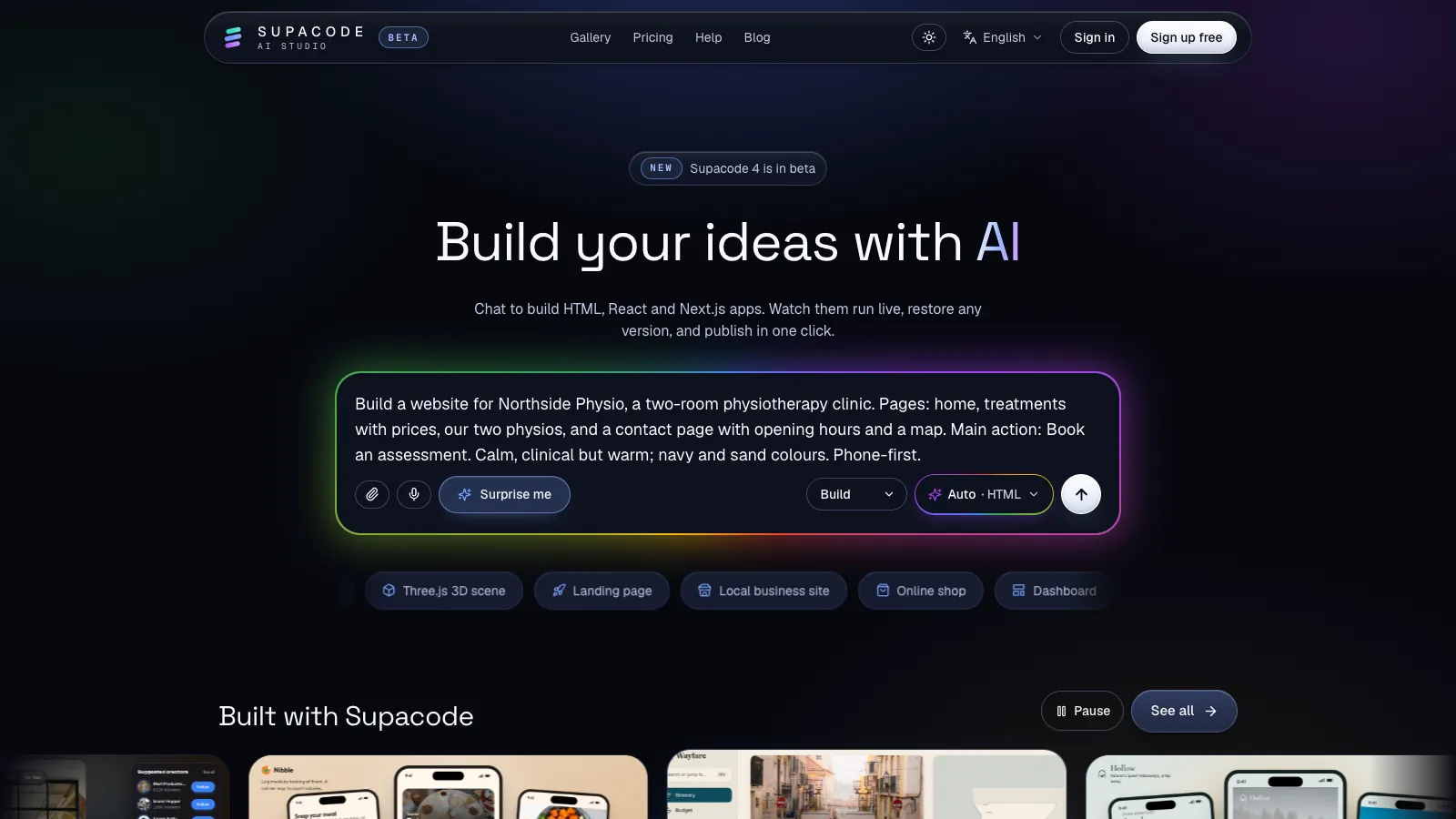
We'll use a made-up example throughout: Northside Physio, a two-room physiotherapy clinic. Here is the first prompt, the one in the cover image above:
Build a website for Northside Physio, a two-room physiotherapy clinic. Pages: home, treatments with prices, our two physios, and a contact page with opening hours and a map. Main action: Book an assessment. Calm, clinical but warm; navy and sand colours. Phone-first.It's short, but every clause does a job:
- What it is and for whom: a two-room physiotherapy clinic. That sets the tone, the sections a visitor expects and the vocabulary.
- The pages: four, named. The generator doesn't have to guess the structure, so the navigation comes out right the first time.
- One main action: Book an assessment. One obvious next step is easier for a visitor to find than five equal buttons.
- The look in a few words: calm, clinical but warm; two colours. Adjectives plus colours beat a long list of visual instructions.
- Phone-first: many visitors to a local business site arrive on a phone, so say it up front rather than fixing it later.
What the prompt leaves out matters too. It gives no prices, names or hours, so the generator has to fill those with placeholders. That's fine for a first draft as long as you replace every one before publishing; we'll come back to it. If you already have the real text, paste it in. Supacode accepts long, pasted briefs, so a page of notes is fine.
Not sure what you want yet? Switch the mode from Build to Plan first. Supacode replies with a plan in the chat and changes no files, so you can correct the plan before anything is built.
How do you build the site with an AI website generator, step by step?
- Open the home page and paste your prompt into the composer. You can attach a logo, photos or a screenshot of a site you like with the paperclip.
- Leave the stack on Auto. For the clinic prompt it shows Auto · HTML: a site with pages and content gets plain HTML, which is fast and simple to host. Pick React or Next.js yourself only if you know you need them.
- Press Start building (the arrow button). You'll be asked to sign in or create a free account if you haven't yet. Supacode creates the project and starts the first build straight away; the progress line shows about how many credits it expects to use.
- Watch the first version appear in the live preview. The first reply also says which stack it used and why.
- From here on, the studio chat shows a credit estimate before you send each request. The credits guide explains how it's counted.
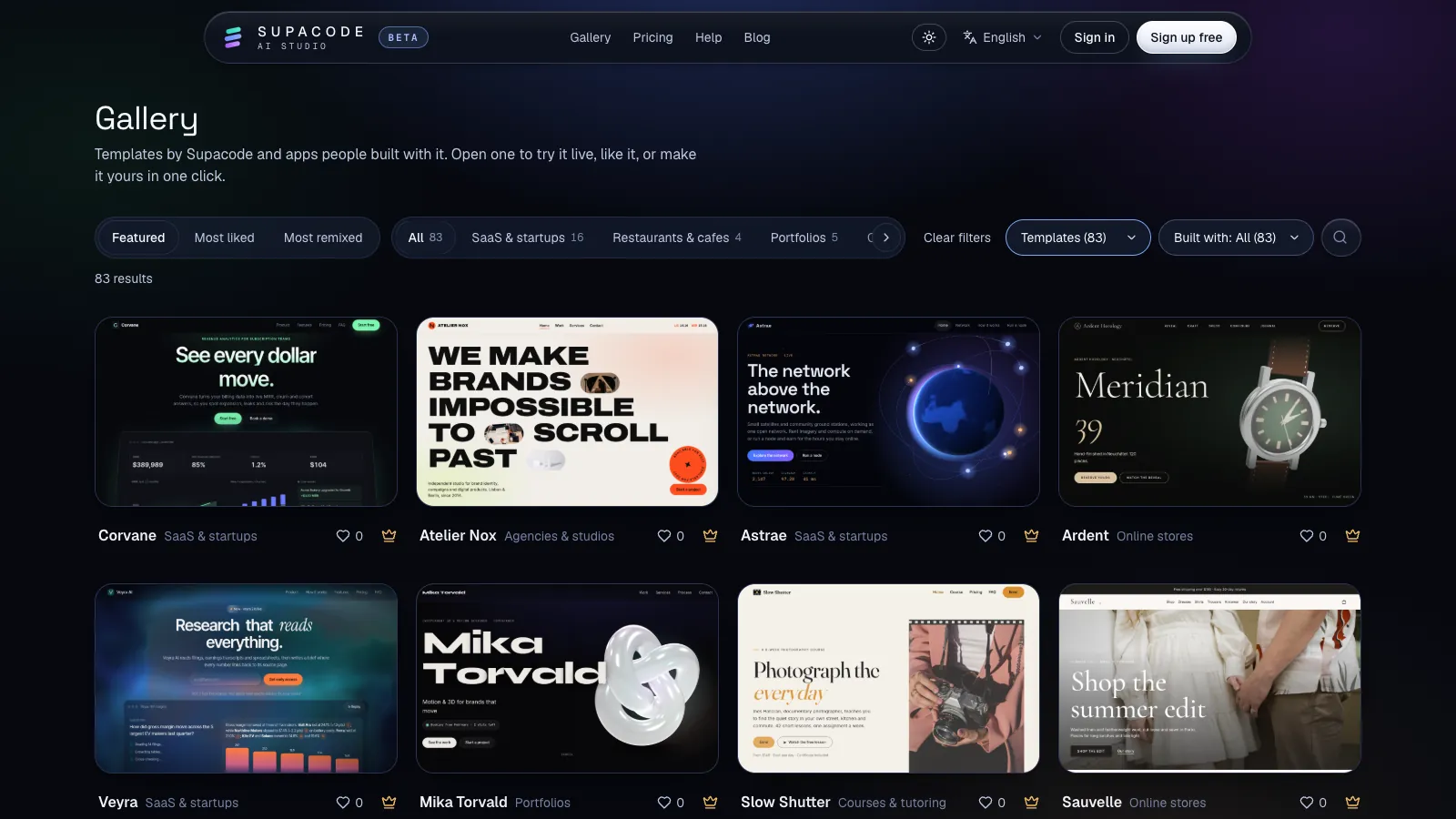
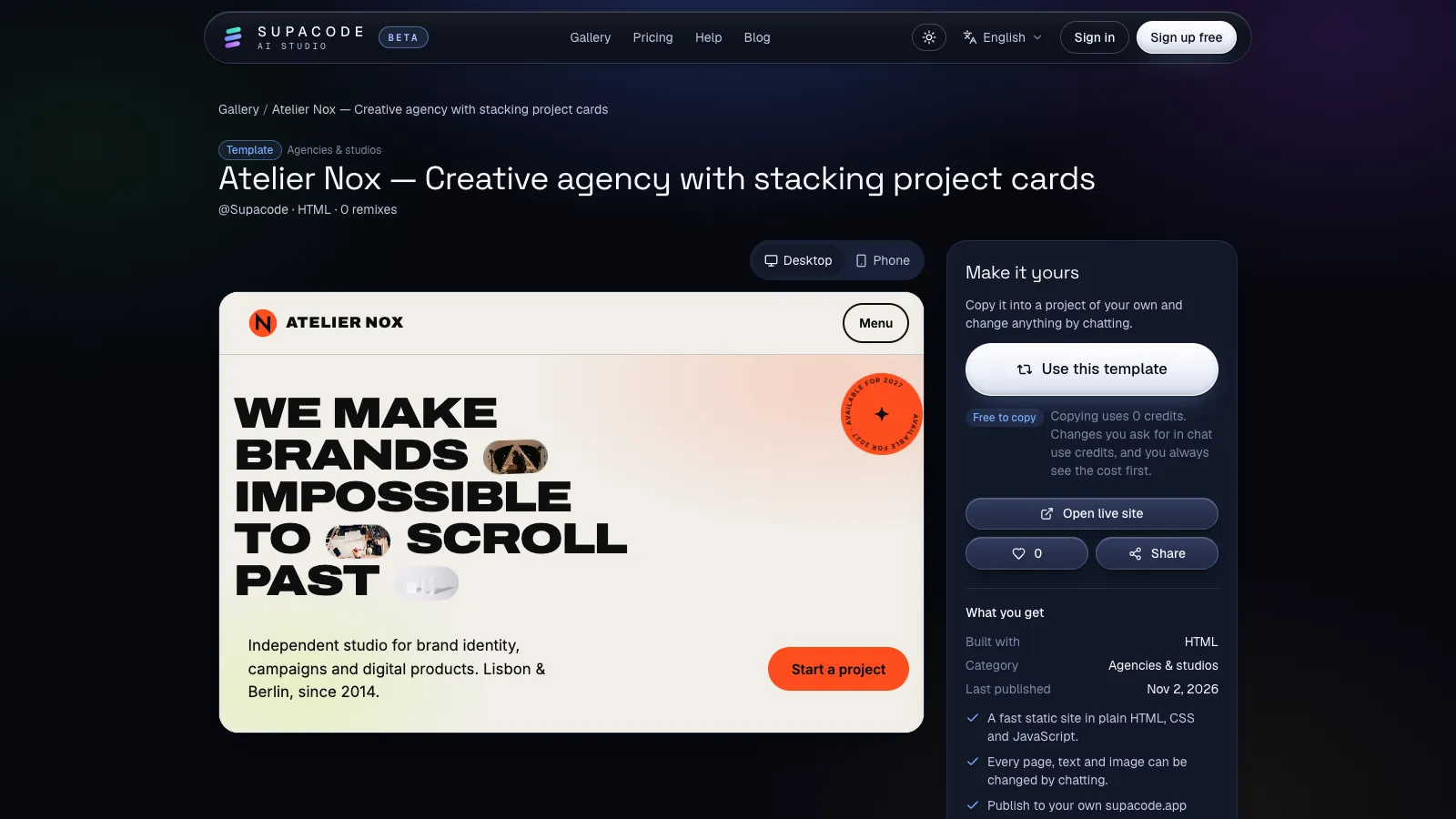
Two shortcuts are worth knowing. If your first message is too vague to build anything good (“make me a website”), Supacode asks one question with a few tap-to-answer suggestions instead of guessing, and that question costs no credits. And if you'd rather start from something finished, the gallery has official templates you can copy for 0 credits and then reshape by chatting.
What should you check in the first draft?
Resist the urge to start with colours. A beautiful page with the wrong phone number is worse than a plain one with the right number. Review in this order, and write down what's wrong before you ask for anything:
- Facts. Every name, price, hour and address. Anything you didn't supply is a placeholder, even if it looks plausible.
- The main action. Can you find “Book an assessment” within three seconds on every page? Does it go somewhere real?
- Phone layout. Switch the preview to Phone. Check the menu, the button sizes and anything that scrolls sideways.
- Pages and navigation. Are all four pages there, and does every menu link work?
- Style. Only now: colours, spacing, fonts and images.
This order matters because each step can change the one after it. Fixing facts may lengthen a page; fixing the phone layout may move the button. Style is cheapest to change last.
What do you do when the result is not right?
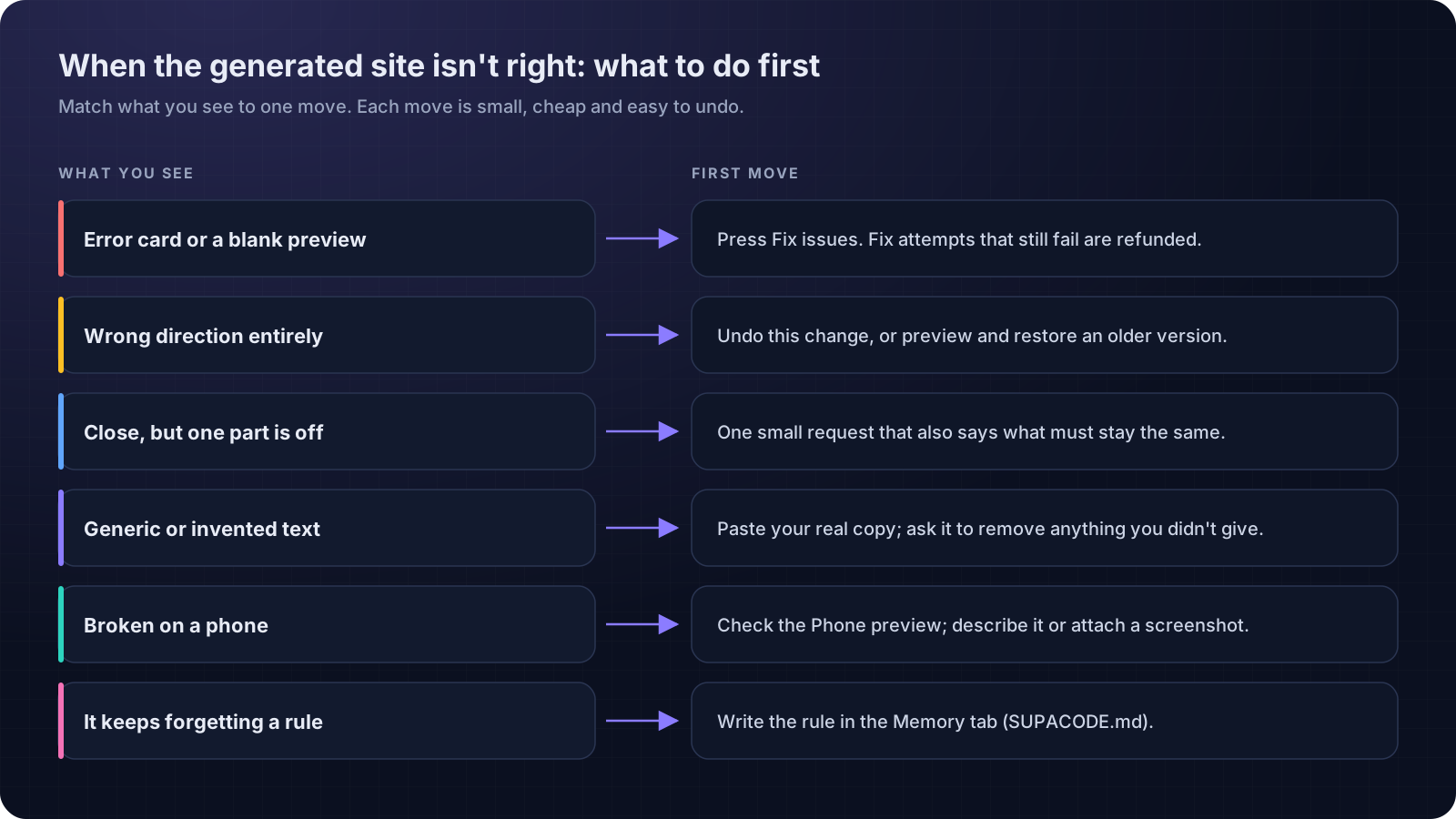
This is where most people either give up or burn credits by starting over. Don't do either. Match what you see to one move:
The preview shows an error or a blank page
Supacode checks every change before you see it: that the code builds, that no image or file it points to is missing, and that the navigation links to real pages; for HTML and React sites it also runs the page for a moment to catch crashes and blank screens. If a problem remains, it tries up to two automatic fixes. When those fixes still fail, the credits for the fix attempts are refunded. If the preview still reports errors, a Fix issues card appears in the chat; press it to send those errors to the AI as a new request.
It went in the wrong direction
If the AI took a request somewhere you didn't mean, don't argue with it in the next message. Use Undo this change on that message, then ask again more precisely. Starting from the good version is cheaper than steering back from the bad one.
It's close, but one part is off
This is the most common case. Ask for one change, name where it is, and say what must stay:
On the Treatments page, turn the price list into three cards (Assessment, Follow-up, Sports massage) with the price and duration on each card. Keep the header, colours and everything else on the page as it is.The last sentence is the important one. Naming what to keep stops a small request from turning into a redesign. Ten changes in one message make it impossible to tell which one broke the layout.
The text is generic or invented
Generated copy fills gaps with plausible filler: a vague mission statement, a testimonial nobody gave, a price you never set. Replace it with your own words and ask the AI to clean up after itself:
Replace the About text with the paragraph below, word for word. Then remove any testimonial, award or number on the site that I didn't give you, and list what you removed. [paste your text]It looks broken on a phone
Describe what you see as precisely as you would to a person: “On the phone preview, the menu covers the hero and the Book button is cut off on the right.” If words don't capture it, take a screenshot and attach it. A picture of the problem is often the fastest prompt there is.
It keeps forgetting a rule
If you've asked for “no stock photos of people” three times, the rule belongs in the Memory tab. That's a file in your project called SUPACODE.md that Supacode reads with every request, so durable choices like brand voice, colours and phone-first stay put without repeating them. Our prompt patterns guide has more on what to keep there.
How do you undo a change that made things worse?
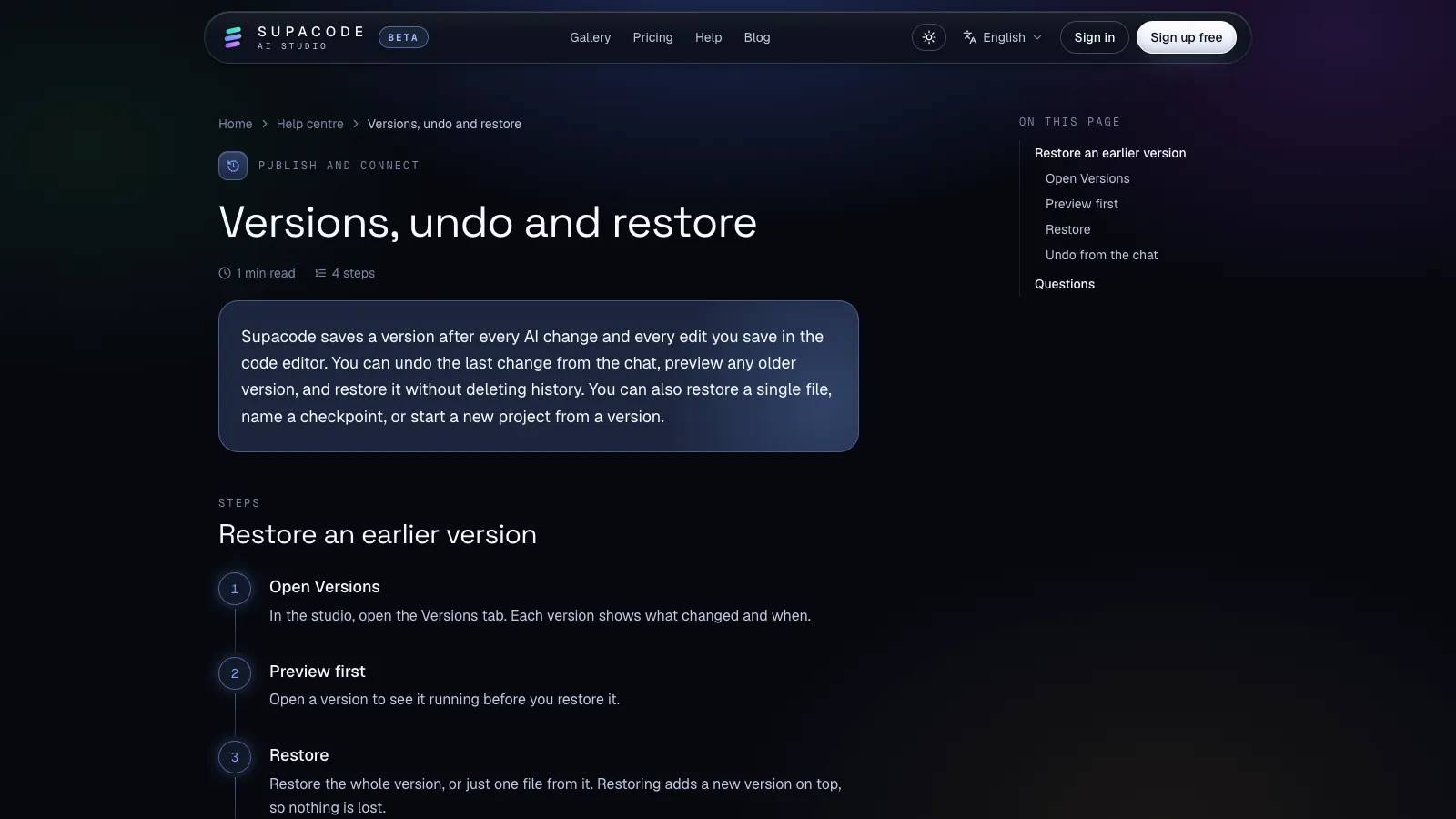
Every AI change and every edit you save in the code editor becomes a version. In the studio's Versions tab you can preview any older version running before you restore it, restore the whole project or just one file, and name a checkpoint before a risky change. Restoring adds a new version on top, so nothing is lost and you can always go forward again. The versions guide walks through each step.
Two more controls are worth knowing. Stop cancels a request that's heading the wrong way; a stopped request saves nothing. And if you know some HTML or CSS, the Code tab lets you edit a file by hand; that edit is saved as a version too.
When is an AI-generated website ready to publish?
Publish when the facts are right, the main action works on a phone, and you've read every line out loud once. Then press Publish in the studio. Supacode builds the site and gives it a live address on supacode.app. Only people with the link can open it until you choose to show it in the public gallery. After later edits, press Update live site; you can also put an older version live from the Versions tab or take the site offline. The publishing guide has the details. Custom domains are not switched on yet during the beta.
Will Google mind that AI wrote it? Google's stated position is that it rewards helpful, high-quality content however it is produced, and that using automation mainly to manipulate rankings breaks its spam policies. In practice the risk isn't the AI; it's generic copy that could describe any clinic in any town. Specific, accurate details about your business are what make a page useful.
On cost: Supacode's Free plan comes with free credits every day, and copying a template uses none; current plans are on the pricing page. The site is real code you own: any version can be downloaded as a zip. To see how the pipeline works under the hood, and how to write prompts that get better sites from the first try, read text to website: how AI turns a prompt into a site. To weigh Supacode against other tools, see AI app builders compared.
FAQ
Frequently asked questions
What is the best way to use an AI website generator?
Write one detailed first prompt with your real details and one main action, review the draft for facts and phone layout before style, and then ask for one change per message, saying what must stay the same.
Can I build a website with AI for free?
Yes. Supacode's Free plan includes free credits every day, copying an official template uses 0 credits, and you can publish on a supacode.app address. See the pricing page for current limits.
What should I do when the AI website generator gets it wrong?
Don't start over. Press Fix issues for errors, use Undo this change or restore a version for a wrong direction, and ask for one small change that names what to keep for anything that's close.
Do I pay for the AI's mistakes?
In the studio, Supacode shows a credit estimate before you send each request. If a build breaks and its automatic fixes also fail, the credits for those fix attempts are refunded.
Can I edit the generated website myself?
Yes. Ask in plain words, or open the Code tab and edit the files directly. Hand edits are saved as versions just like AI changes.
Will Google rank a website made with an AI website generator?
Google says it rewards helpful, high-quality content regardless of how it is made. Accurate, specific details about your business matter far more than the tool you used.
Sources
- Google Search's guidance about AI-generated content · Google Search Central
- Creating helpful, reliable, people-first content · Google Search Central
- <a>: The Anchor element (mailto: links) · MDN Web Docs